DELR - Delivery Routes
Overview
Setups
Add Invoices to Routes
Find Invoices
Print Open Routes (Close Manifests)
Search and Display Routes
Reports
OPA Shiptrack
Add Invoices to Routes
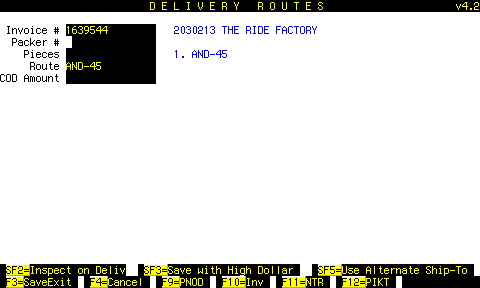
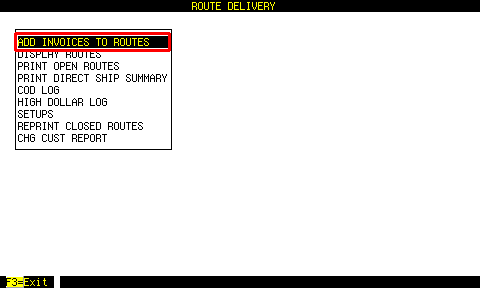 From the first menu, highlight ADD INVOICES TO ROUTES and press [ENTER].
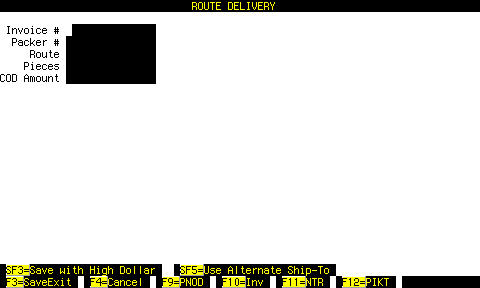 Enter invoice #.
Enter packer #. The number entered here needs to exist in the NAME-FILE as a type 7 (salesman).
The route will be pulled from the invoice according to your setups, but can be changed here. Route names are saved in a file, so each time you have a new one, you will be prompted to save it.
Enter number of pieces. You can enter zero pieces if you are shipping this with another invoice for the same customer. You will be shown a list of pieces for that customer, and you select one to "attach" this piece to.
The COD amount will be pulled from the invoice if the sale type is set up as a COD sale type. You can edit the COD amount in this screen.
Press F3 to save the data and print a label or labels. You will be shown a list of printers on the system, including SLAVE and TERMINAL. Select the printer for which you have delivery labels loaded. After the first label(s), you will not be prompted for a printer again, unless you exit the program.
Press Shift-F3 to put one or more parts on this invoice on the high dollar log.
Press Shift-F5 to enter an alternate ship to address which will print on the label and the manifest. Do this before you save and print labels with F3 or Shift-F3.
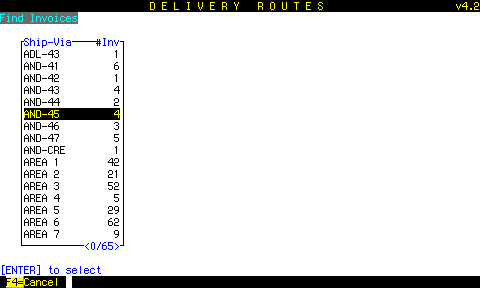
Finding Invoices
From the Add Invoices screen, press F9 PNOD (Picked - Not On Delivery).Select a SHIP-VIA and press ENTER.
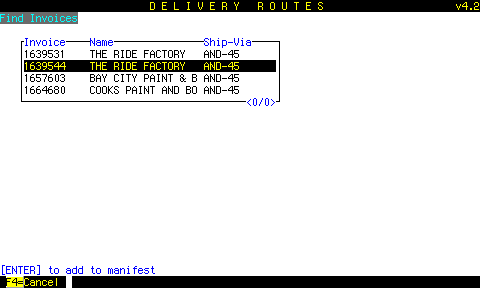 The available invoices for that SHIP-VIA are displayed.
Select an invoice and press ENTER...
 ...to add it to a manifest.
