Import a macro to Reflection
 Open the Visual Basic Editor window.
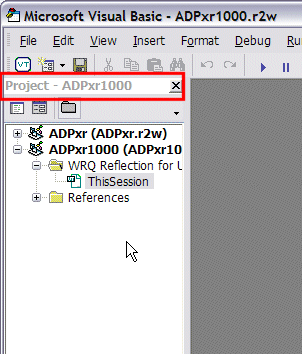 If the "Project" pane is not visible...
 Click View | Project Explorer to make it visible.
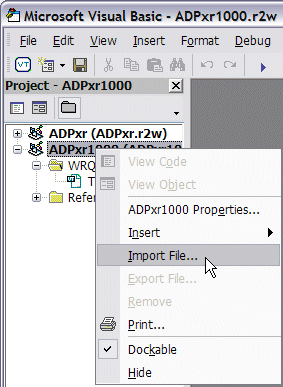 Right-click in the area of the "WRQ" folder, then left-click Import File.
Navigate to the saved macro file (with extension .bas) and "open" it to import it.
Close the Visual Basic Editor window.
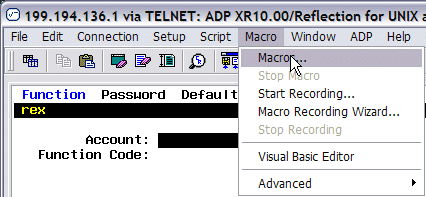 The macro will now be available under Macro | Macros.
Or...
to add a button to run the new macro...
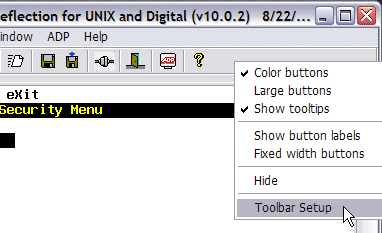 Right-click in an empty area of the toolbar, then left-click on Toolbar Setup.
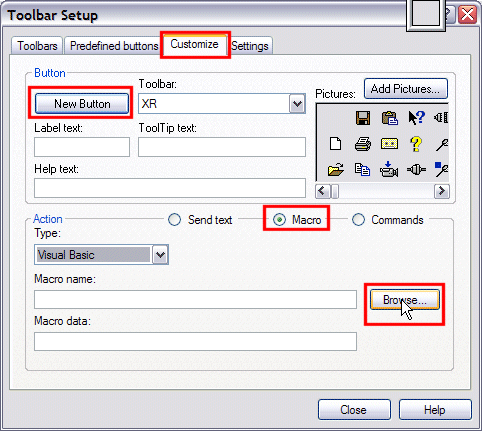 Click the Customize tab.
Click the New Button button.
Select from the available pictures to appear on the new button.
Click the Macro radio button.
Click the Browse button.
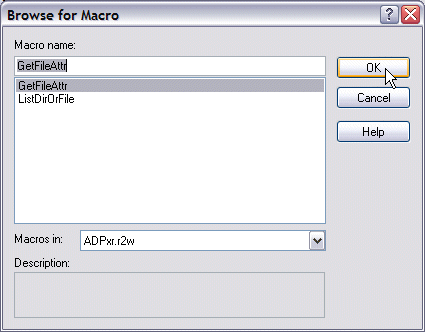 Find the macro to associate with the button, highlight it with a single click, then click OK.
Click the Close button at the bottom of the Toolbar Setup window.
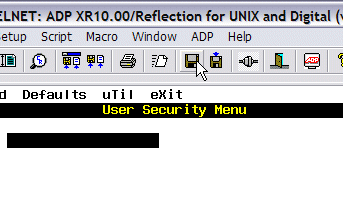
Very Important!
Click the disk icon to save the Reflection Session.
Last Updated on ... August 22, 2007